Make a PDF searchable: text recognition for one file — or for your whole document archive
Make a PDF searchable: the tools for single files — and the way to keep your whole document archive searchable from the start.
By Roman Brüngger — Fiduciary with a Swiss federal diploma · Founder rombro ag
As of: July 2026
The short answer: a scanned PDF becomes searchable when text recognition (OCR) lays an invisible text layer over the scanned image. For single, non-sensitive files, a free tool handles this — locally, for example the PDF24 Creator (Windows), online iLovePDF or Smallpdf, or in Adobe Acrobat Pro the “Scan & OCR” menu item. The tool guides leave out two things: business documents containing customer or payroll data don’t belong in just any free online converter — and if you look up documents regularly, you shouldn’t be converting single files at all, but moving your archive to a place where every scan is automatically indexed in full text. For bexio users, there’s a direct shortcut: quintio.ch automatically keeps every document searchable in your own Google Drive — set it up once, never convert again. The details on both, below.
Why isn’t a PDF searchable?
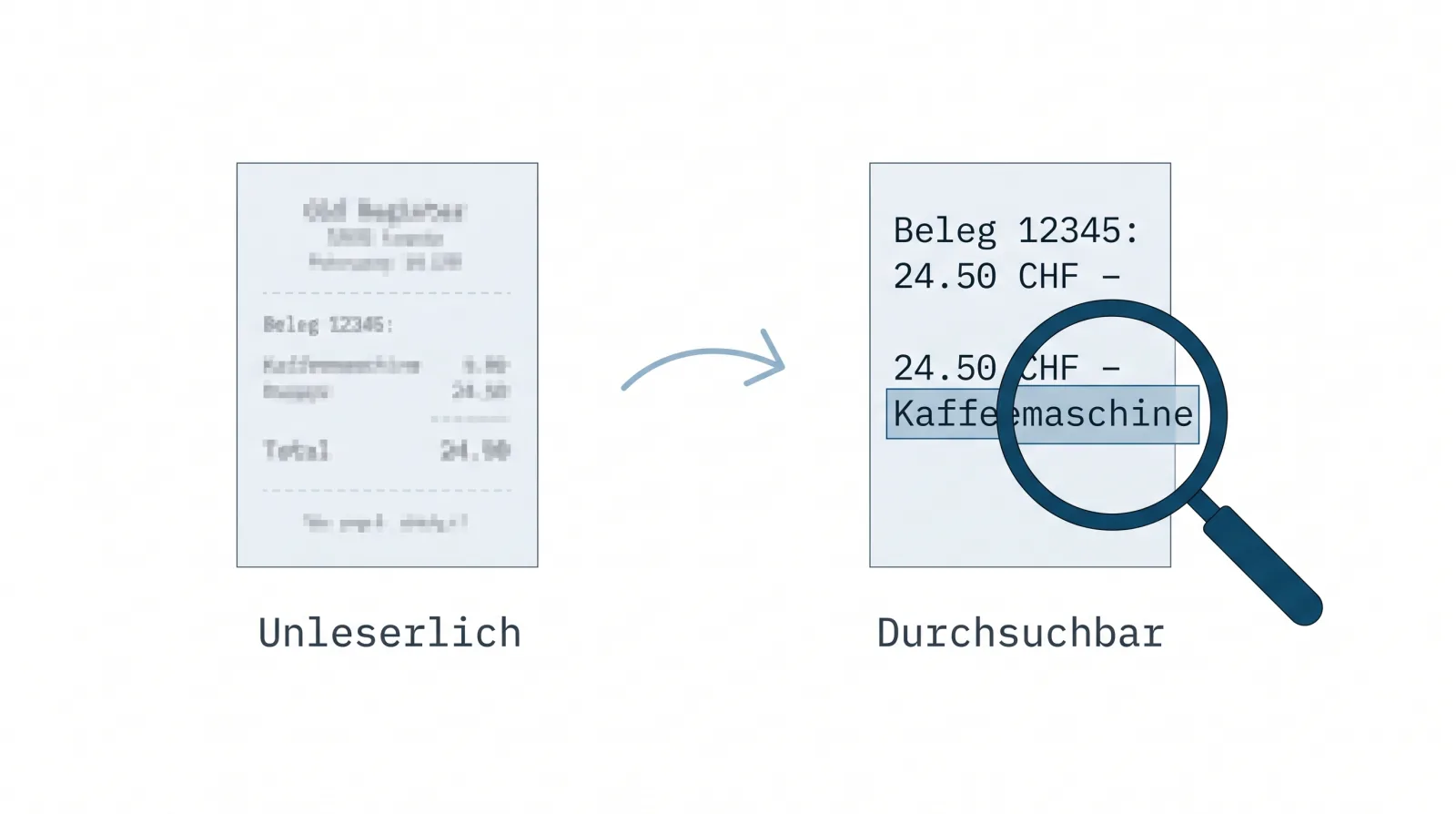
A PDF is either “born” text (from Word, from accounting software) — in which case Ctrl+F finds every word. Or it’s a scan or a photo: an image of text, with no text layer. The quick test: try selecting a piece of text with your mouse. If nothing can be selected, it’s an image — and no search in the world will find a word in it until text recognition (OCR, Optical Character Recognition) reads out the text and writes it back into the PDF as an invisible layer.
Typical candidates: scanned supplier invoices, photographed receipts, scan-PDFs from a multifunction printer received by email.

Making individual PDFs searchable: the tools
| Tool | Cost | Where does it run? | Choose it when… |
|---|---|---|---|
| PDF24 Creator | free | locally on your Windows PC | you’re processing business documents and the file shouldn’t leave your computer |
| Adobe Acrobat Pro (“Scan & OCR” → “Recognize Text”) | subscription | local / Adobe Cloud | you already have Acrobat licensed and want to process batches |
| iLovePDF, Smallpdf, PDF2Go | free with limits | upload to third-party servers | it’s a single, non-sensitive document |
| macOS/iOS built-in tools (Preview recognizes text in scans, “Live Text”) | included | local | on the Mac you only want to copy text passages, not convert the PDF |
The point the tool sites leave out: a supplier invoice contains names, addresses, bank details, sometimes payroll or health data — personal data within the meaning of the revised Federal Act on Data Protection (revised FADP, in force since 1 September 2023). Anyone who uploads such documents to a free online converter is handing them to a processor whose server location and deletion practices are usually unknown. For fiduciaries handling client documents, this is doubly sensitive. The clean ground rule: convert business documents locally (PDF24, Acrobat) — or process them in an environment you have a contractual relationship with, such as your own Google Workspace or Microsoft account.
The shortcut if your documents live in bexio: don’t convert anything at all. quintio.ch is the only service that continuously mirrors every bexio document — including the inbox — into your own Google Drive. Record the document in bexio as usual; minutes later it’s in your Drive and searchable in full text, with no upload to third-party free tools. Try it for free → — the first documents sync for free, no credit card required.
Many PDFs at once? Then single-file OCR is the wrong problem
By the third document at the latest, it becomes clear: open the file, convert, save, repeat — that doesn’t scale. An SME quickly accumulates hundreds of documents a year; a fiduciary office, thousands. Nobody converts them by hand after the fact.
The solution isn’t batch software, but an archive with a built-in index: Google Drive automatically indexes uploaded documents for search — Google documents this officially: “Drive automatically indexes documents for search when it recognizes the file type, including text documents, PDFs, images with text, and other common types” (developers.google.com). Concretely, that means:
- No converting. The scan stays as it is — Drive reads the content on upload and makes it searchable.
- Photos too. A photographed receipt is found by its content, not by the
filename
IMG_4711.jpg. - Search across everything at once. One search term — “Brack”, “847.30”, the item description — searches the whole archive, not one file.
Google positions scanning in Drive itself exactly for this case: “Scan documents like receipts, letters, and billing statements to save them as searchable PDFs on your Google Drive” (Google Drive Help).

That flips the question: not “How do I make this PDF searchable?” but “How do my documents get automatically to a place that makes them searchable?” — and in a sensibly structured way, not as a file dump.
Never convert again: every bexio document automatically searchable
If you keep your books in bexio, your documents already live in one place — it’s just that content search there isn’t available depending on your plan (what works in bexio and what doesn’t). quintio.ch closes exactly this gap, at the level where the problem actually sits — the whole archive rather than the single file:
- Retroactively complete. The mirror pulls in the entire history — inbox and invoice PDFs — into your own Google Drive, filed neatly by year and month. Even the scan from 2019 becomes searchable.
- Ongoing, with no extra step. Record the document in bexio as usual; a few minutes later it sits searchable in Drive. No converting, no manual upload, no free tool with an unclear server location.
- The folder is yours — not your accounting tool’s. If you cancel, the searchable archive simply stays put (all the ways to connect bexio with Drive).
Frequently asked questions (FAQ)
How do I make a scanned PDF searchable? With text recognition (OCR): free and local with the PDF24 Creator (Windows), in Adobe Acrobat Pro via “Scan & OCR” → “Recognize Text”, online with iLovePDF or Smallpdf — the latter only for non-sensitive documents.
What does text recognition for PDFs cost? Nothing for single files: PDF24 (local) and the online tools are free for basic use. Google Drive indexes content at no extra charge in every account — that too is free OCR, just without a conversion step.
Does OCR also recognize handwriting? Only to a limited extent. Printed text — invoices, receipts, contracts — is recognized reliably; handwritten notes are only partly found, depending on the handwriting. Don’t rely on search for handwriting.
How can I search several PDFs at once? On your own computer: Acrobat (“Advanced Search” across folders) or Windows Search — but both only find what already has a text layer. Without any prep work, it’s possible in Google Drive: the entire folder contents are searchable by full text, scans and photos included.
Am I allowed to upload business documents to online OCR tools? Legally, it’s your responsibility: documents contain personal data (revised FADP). With free converters that have no contract, no known server location, and no deletion commitment, it’s advisable not to — convert locally or in your own cloud environment. This applies doubly for fiduciaries handling client data.
Do I have to make my bexio documents searchable one by one? No. A mirroring service like quintio files them automatically in Google Drive, where content search works without conversion — retroactively, across the whole archive.
quintio.ch continuously mirrors every document from bexio into your own Google Drive — searchable thanks to Google’s OCR, no converting, no manual work. Try it for free → Sign in with bexio, the first documents sync for free. No credit card required.
Sources
- Google Drive API: “Drive automatically indexes documents for search …” — automatic full-text indexing of PDFs and images
- Google Drive Help: “Scan documents with Google Drive” — scans are saved as searchable PDFs
- Federal Act on Data Protection (revised FADP), SR 235.1 (Fedlex) — in force since 1 September 2023
- PDF24 Creator — free local OCR on Windows (as of July 2026)
- Adobe: making PDFs searchable via OCR — “Scan & OCR” menu path
quintio automatically mirrors your bexio documents into your own Google Drive.
Sign up free